Make sure this is the feature you mean
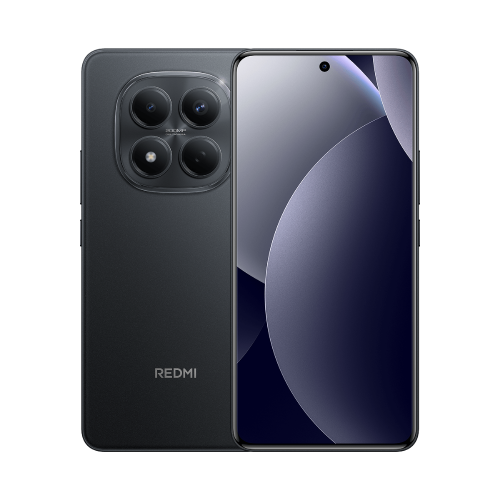
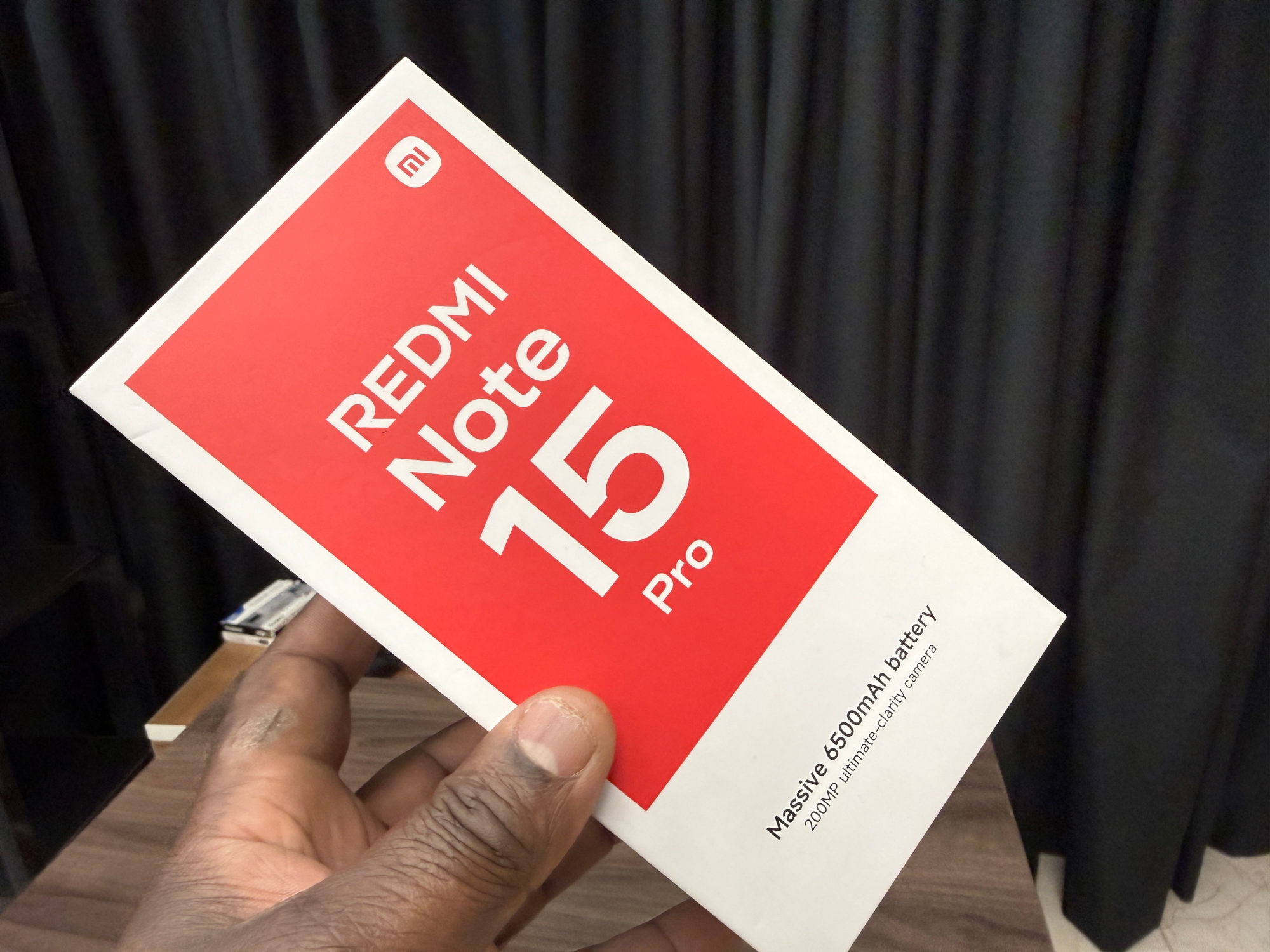
Xiaomi confirms Second space support for the Helio G200-Ultra Redmi Note 15 Pro in its UK FAQ. This article pairs that model information with Xiaomi's general Second space deletion guide; the exact wording can vary with your installed software.
If you only created a second copy of one app, check my Dual apps guide instead. I'd identify what I am removing before following instructions for a different feature.
Check the copy before you delete
1. Review the apps and files you still need from Second space. Make a short list of anything you would miss, rather than assuming everything is already available elsewhere.
2. Save what you need outside that space. For information held inside an app, check that app's supported export or account-sync instructions; copying a document is not the same as preserving every app's internal data.
3. Open the saved items from the first space or computer and check the contents. If you depend on an account, verify that you can access the information you need outside Second space before proceeding.
I'd pause if any important item is still unaccounted for. A backup label or a remembered sign-in is less reassuring than actually opening what I need.
The deletion route Xiaomi documents
From the first space, Xiaomi's general instructions say to open Settings, then Additional settings, then Second space. The trash icon at the upper right leads to Delete; the guide then asks for the Xiaomi account password to authorise removal.
Use that route only after checking your copies and deciding to remove the space. If your screen differs, stop and check your model and software version with Xiaomi support instead of guessing at another deletion control.
Xiaomi also documents removal from inside Second space, with an option to move data to the first space during the process. I would still verify the important copies beforehand, rather than rely on that prompt to preserve everything.
Check what remains afterwards
After removal, open the documents or other saved items you checked earlier. For each app you plan to keep using, confirm the intended account and needed information are available.
If the real problem is that you cannot enter Second space, I'd seek support before choosing deletion as a workaround. The same data-loss warning still matters when you are trying to fix an access problem.
Useful links
- Xiaomi UK: Redmi Note 15 Pro FAQ, Second space support (opens in a new tab) Checked 26 October 2026
- Xiaomi global: deleting Second space, data-loss warning and both removal routes (opens in a new tab) Checked 26 October 2026
Written with AI assistance for Redmi fans. How this blog is put together.