Check the phone and connection first
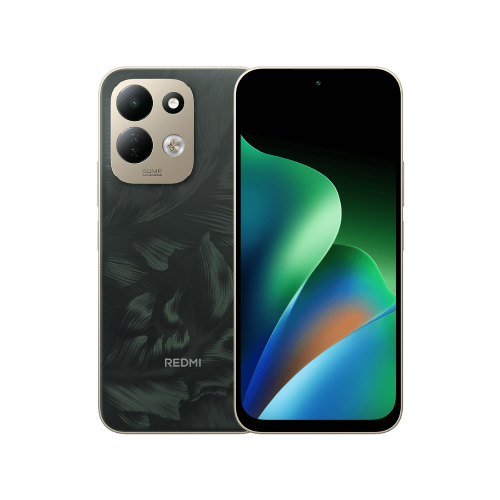
This guide covers the Redmi 17 in Xiaomi's global FAQ. It combines the model's documented Wi-Fi support with Google's general Android troubleshooting. It does not establish exact menu labels for every regional software build or the Redmi 17 5G.
1. Open the phone's Wi-Fi network list and make sure Wi-Fi is on. Switch it off and back on, then try the intended network again.
2. Move closer to the router and check whether the signal improves. If a password is requested, use the password for that network.
3. Restart the phone if it still fails, reconnect and try loading a fresh web page.
I'd note the exact result at each stage: network missing, password rejected, or connected with no internet. That is much more useful than simply reporting that Wi-Fi is broken.
If the 5 GHz network is missing
Xiaomi lists Wi-Fi 5 and 802.11a/n/ac support on the 5 GHz band for the Redmi 17. Its model-specific advice is to check that the router's 5 GHz band is enabled and broadcasting, bring the phone within range, and restart the phone and router before trying again.
Ask the router owner to check those settings if you do not administer it. I'd compare the network name shown on the router with the one I am looking for on the phone, rather than guess from a label such as 5G. In this Wi-Fi context, 5 GHz names the wireless band; it does not mean the phone is using a 5G mobile-data connection.
Work out whether the phone or network needs help
Google's Wi-Fi troubleshooting suggests two useful comparisons: try another device on the same network, then try the phone on another Wi-Fi network. Use networks you have permission to join.
If another device gets online but the Redmi does not, I'd focus the next checks on the phone or its connection to that network. If the Redmi works elsewhere, I'd investigate the original network. These comparisons narrow the search; they do not prove a hardware fault.
If the Redmi joins Wi-Fi but pages still fail, the router's internet connection may be the problem. I'd also check whether other connected devices can load a new page. On a public network, Google recommends checking for a sign-in notification or opening a new browser page to find its access page. Read the network's terms before deciding whether to continue.
Restart your router, then check the result
For a router you manage, follow its manual's restart instructions and wait for its normal status lights before reconnecting. This means restarting its power, not pressing a factory-reset button. Let anyone using the connection know first.
Try the same fresh web page again. If several devices still cannot get online, contact the internet provider or network administrator. If the Redmi fails across multiple working networks, give Xiaomi support the model, software version, exact error and the comparisons you tried. I'd gather those details before considering broad resets or replacement equipment.
If your aim is to share the phone's mobile data with another device, my Redmi 17 hotspot guide covers that separate task.
Useful links
- Xiaomi global: Redmi 17 FAQ, Wi-Fi support and 5 GHz checks (opens in a new tab) Checked 19 October 2026
- Google Android Help: connection checks, signal and router restart (opens in a new tab) Checked 19 October 2026
- Google Fi Help: distinguishing phone, network and internet problems (opens in a new tab) Checked 19 October 2026
- Google Android Help: joining and managing Wi-Fi networks (opens in a new tab) Checked 19 October 2026
Written with AI assistance for Redmi fans. How this blog is put together.