Three positions, rather than a shared choice
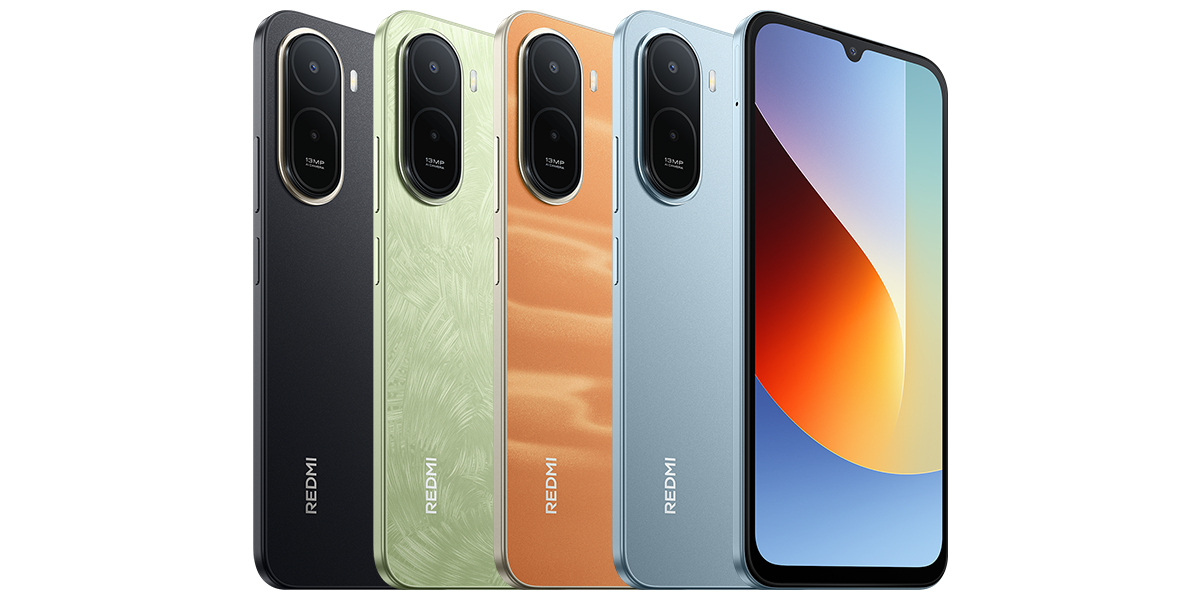
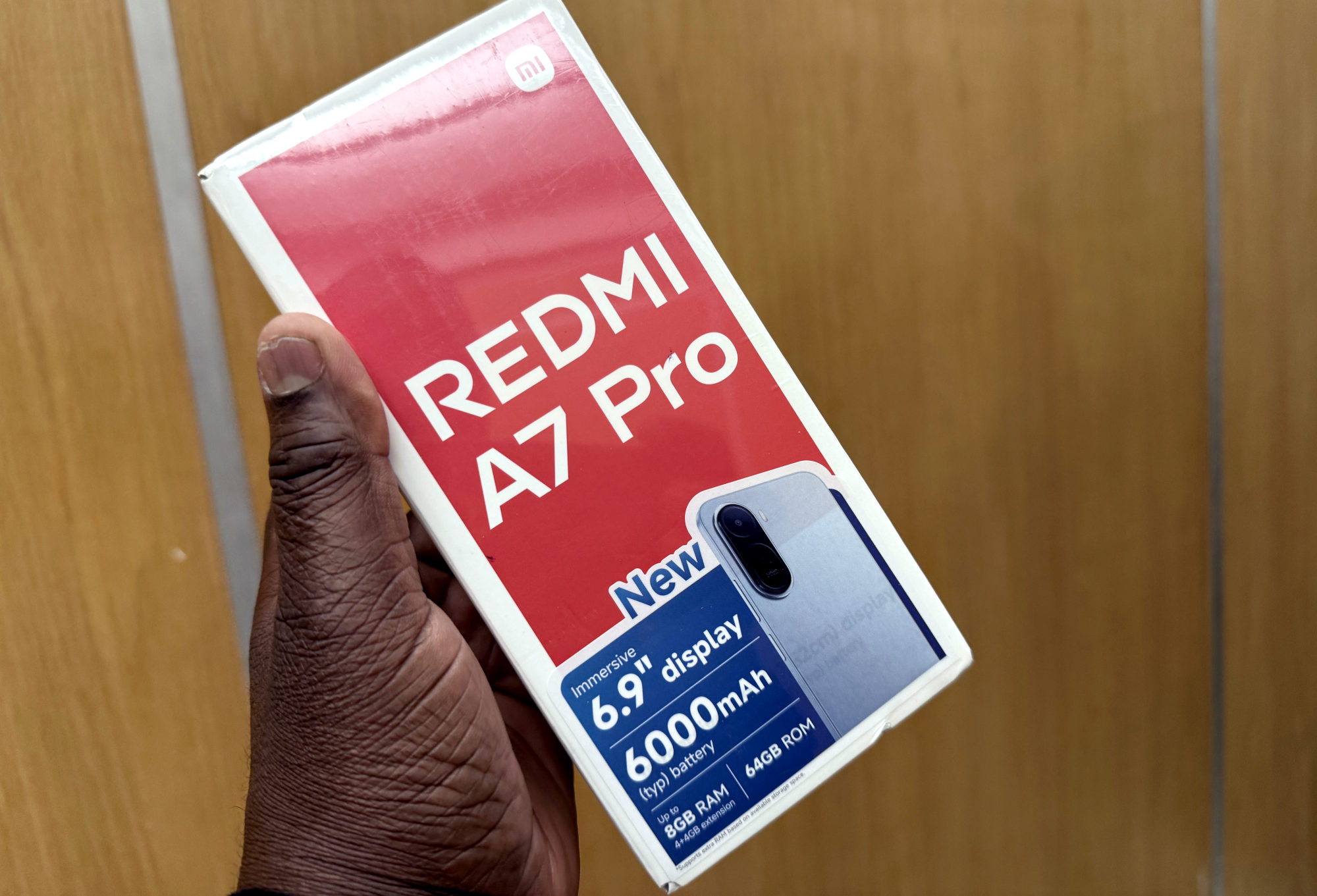
This applies to the Redmi A7 Pro in Xiaomi's global specifications and Malaysia support FAQ. It is the 4G model; check your exact regional version before buying a card or assuming a similarly named 5G model is identical.
The FAQ identifies separate positions for SIM2, SIM1 and the SD card. I'd use the markings on the actual tray and the phone's supplied instructions when fitting them, rather than rely on a photograph of another Redmi's tray.
Xiaomi describes Dual SIM Dual Standby and explicitly says this model does not support Dual SIM Dual Active. Having space for both SIMs should not be read as a promise of two simultaneous active calls.
How much card storage is supported?
Xiaomi's FAQ lists a maximum card capacity of 2TB and exFAT support. exFAT is a file-system format, not a special brand of memory card. That maximum is a compatibility ceiling, not an amount I'd automatically recommend buying.
I'd work out how much room my own photos, videos and documents need, then check the chosen card's compatibility and seller's return terms. Keep a separate copy of important files while trying a new card. The published capacity limit does not demonstrate the reliability or speed of every card on sale.
For portable SD storage, Google's Android guide describes saving files such as photos and videos, but not installing apps on the card. I would not buy one on the assumption that it makes the phone's built-in app storage larger. Google's generic guide also discusses other storage modes; it does not establish which of those this A7 Pro offers.
Check the result before trusting the card
After fitting the card according to the phone's instructions, check that storage settings or your file manager recognises it. I'd start with a copy of a non-essential file, open it from the card and check its contents. Keep the original elsewhere until that small test works.
If the phone asks to format a card that already holds files, pause. Google warns that formatting permanently deletes the card's data. Preserve and verify another copy before considering it; an unexpected format prompt is not my cue to tap through quickly.
A memory card stays in the phone, while a USB drive is a separate connection. If that is the transfer you need, my A7 Pro USB OTG guide covers the adapter and file-copy steps. Keep this tray arrangement specific to the A7 Pro: the Redmi Note 14 SIM and microSD guide covers that family's different choice.
Useful links
- Xiaomi global Redmi A7 Pro specifications: dual SIM plus microSD (opens in a new tab) Checked 29 October 2026
- Xiaomi Malaysia Redmi A7 Pro FAQ: card positions, dual standby, exFAT and 2TB limit (opens in a new tab) Checked 29 October 2026
- Google Android Help: portable SD storage and formatting warnings (opens in a new tab) Checked 29 October 2026
Written with AI assistance for Redmi fans. How this blog is put together.