Check the phone, drive and connector
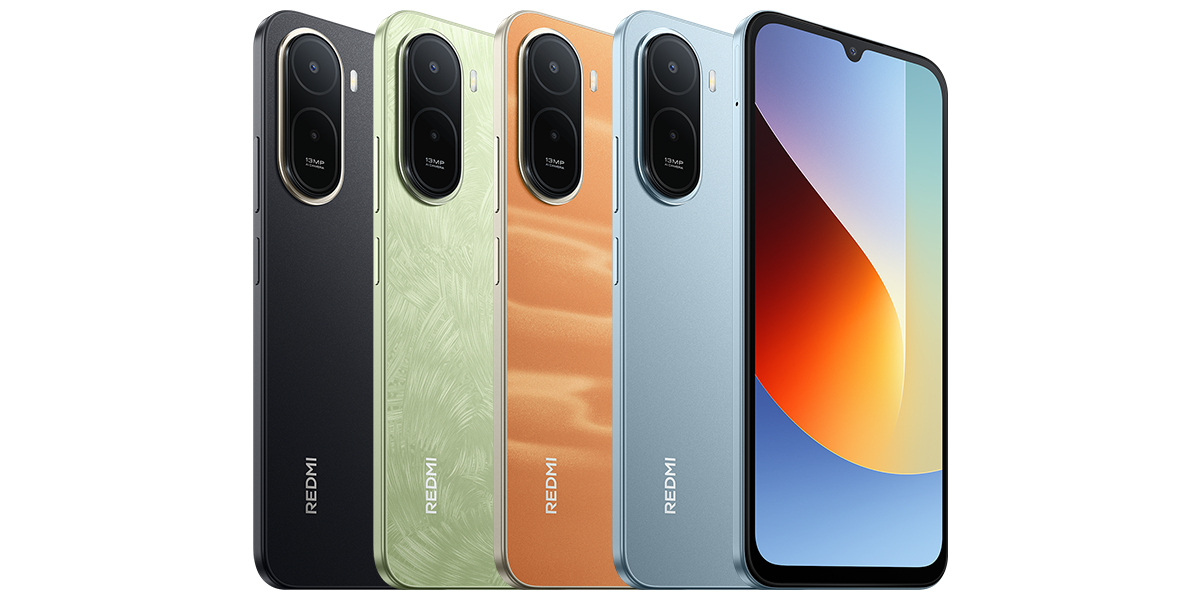
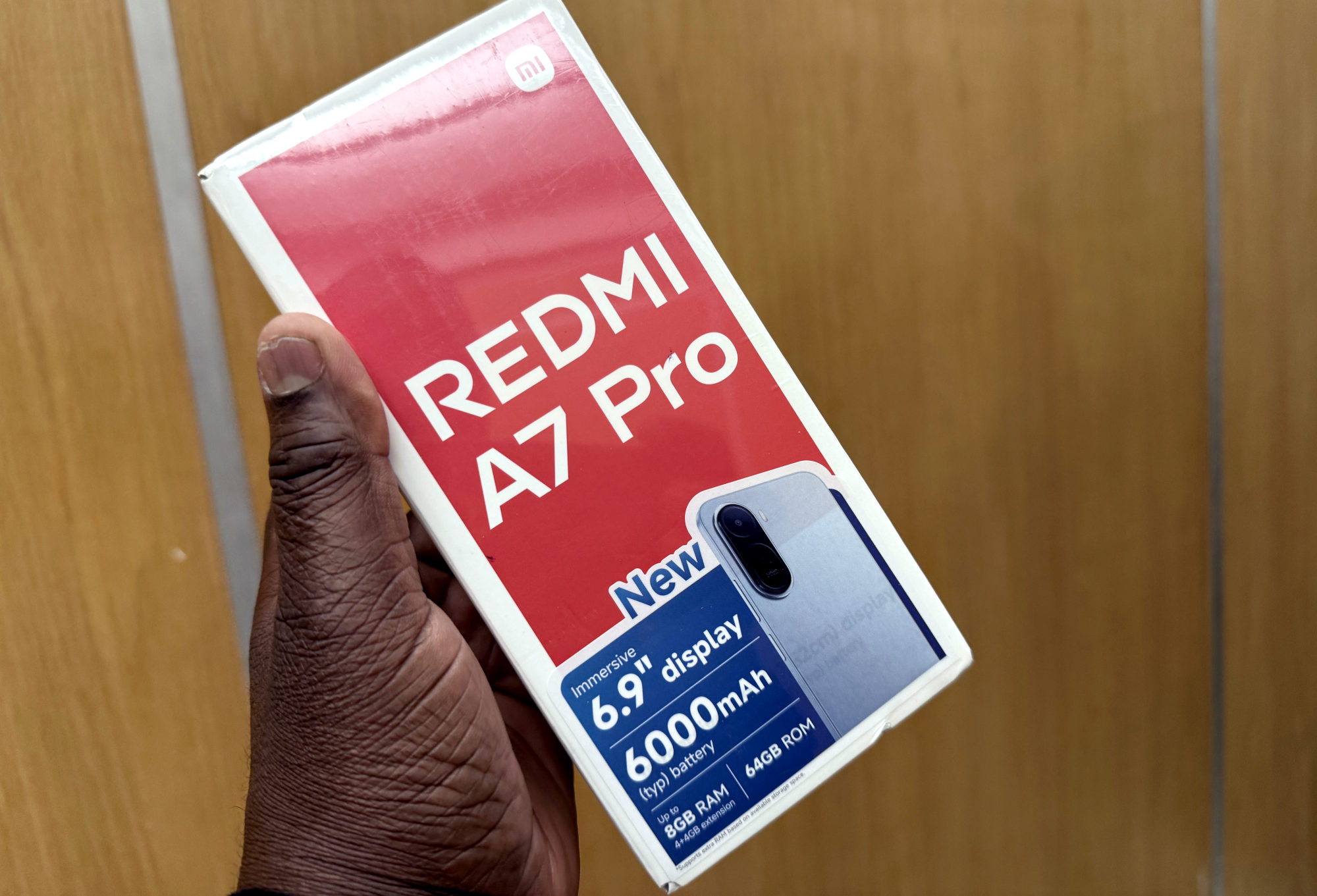
This guide covers the Redmi A7 Pro documented by Xiaomi Malaysia. Its FAQ confirms OTG and lists external hard-drive support up to 1 TB. That capacity statement is not a tested compatibility list for every drive, enclosure or adapter.
Xiaomi explains that an OTG adapter can connect a phone's USB-C interface to a standard USB-A accessory. If your drive has the familiar USB-A plug, use an appropriate USB-C OTG adapter. Match the connector and data connection rather than assuming a cable intended for charging will do the job.
The file steps below use Files by Google, not Xiaomi's own file-manager menus. Use them if that app is available on your phone. Keep an existing copy of important files elsewhere while checking a new drive connection.
Open the connected drive
1. Connect the USB storage device to the phone, using the OTG adapter where needed, then open Files by Google.
2. Look for the USB available notification. Open the storage device and tap Allow when the app asks to access it.
3. Under Storage devices, tap the USB device to browse its files.
Those are Google's documented labels; the app version and phone software may affect what you see. I'd confirm that the drive's expected folders appear before starting a copy.
Copy one file to the phone first
In the USB device's file list, find your test file. Tap the down-arrow menu beside it, then Copy to. If the arrow is not visible, Google says to switch to List view. Choose the destination on the phone and tap Copy here.
I'd use Copy for this first check so the original stays on the drive. Wait for the operation to finish, then open the destination folder and open the copied file. Check its contents, not just its filename. Only move on to a larger batch once that small copy works as expected.
If the drive does not appear
Google suggests removing the USB device and reconnecting it if the notification does not appear. Do this before starting a transfer; avoid disconnecting a drive while a copy is running.
I'd check the adapter's OTG/data support and try the drive on another device before blaming the phone. Record whether the drive is absent altogether or appears but cannot open a particular file. These are different symptoms to describe to Xiaomi or the drive maker.
The sources here do not establish which file systems or power-hungry drive enclosures work on every A7 Pro build. I'd check those details with the drive supplier before buying hardware for this job. If a phone offers to format a drive holding the only copy of your files, stop and preserve those files elsewhere before considering that option.
If you simply need to send a photo to another Android phone, my A7 Pro Quick Share guide covers a transfer without a USB drive.
Useful links
- Xiaomi Malaysia: Redmi A7 Pro FAQ, USB-C, OTG and external-drive support (opens in a new tab) Checked 20 October 2026
- Xiaomi Singapore: what OTG adapters do (opens in a new tab) Checked 20 October 2026
- Files by Google Help: access USB storage and copy a file (opens in a new tab) Checked 20 October 2026
Written with AI assistance for Redmi fans. How this blog is put together.