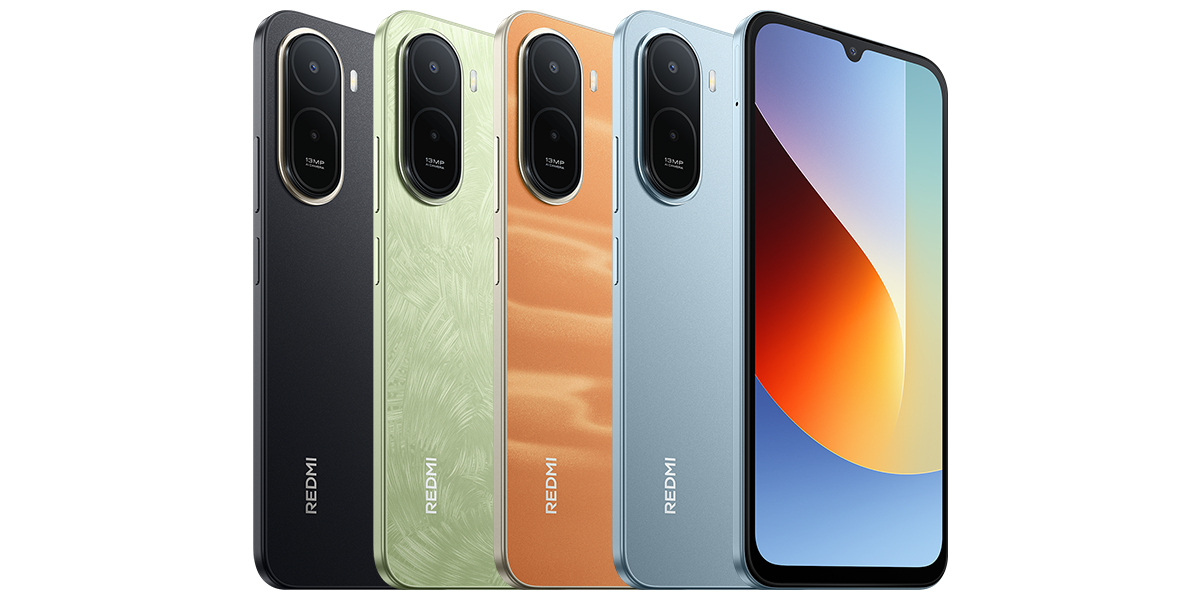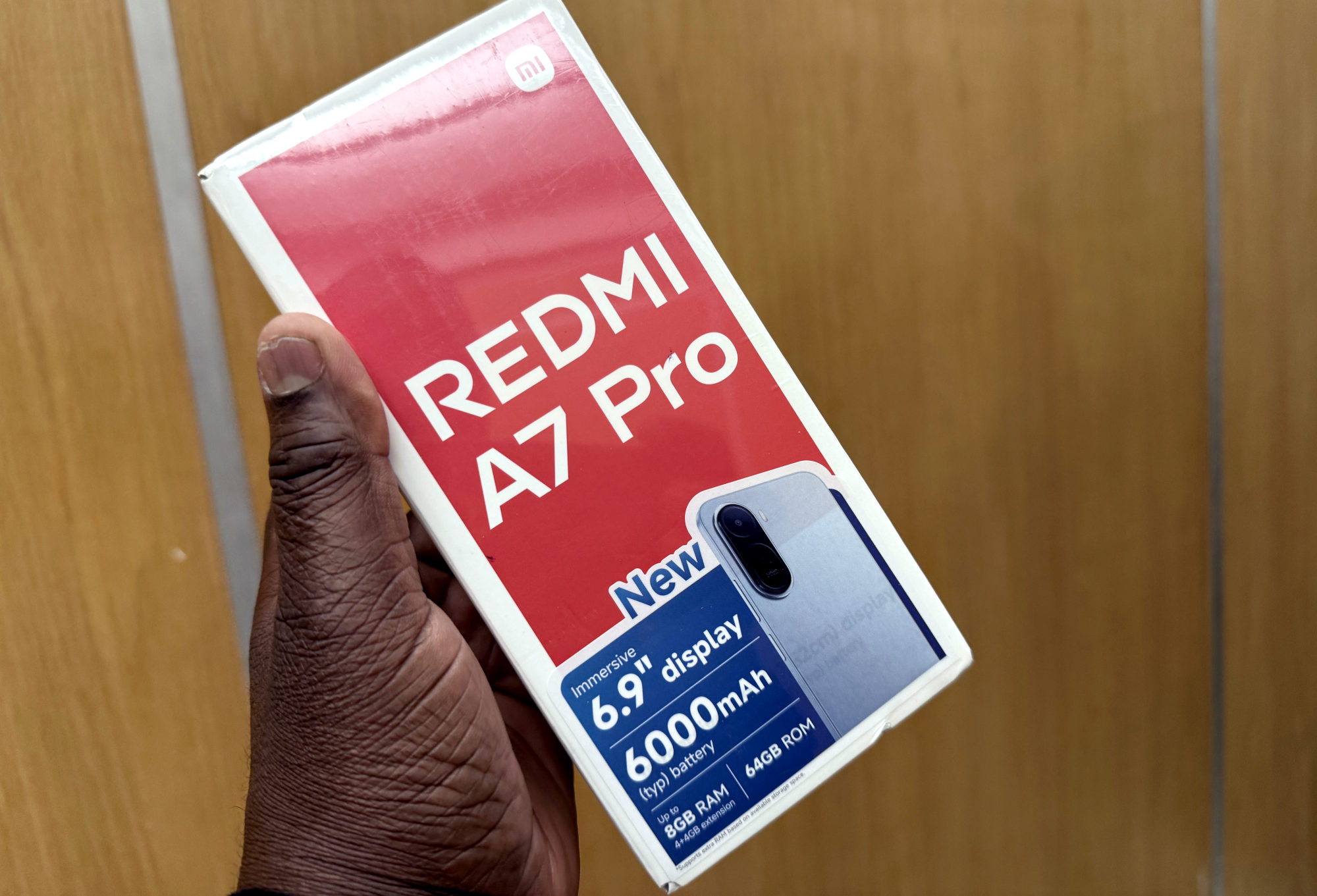
Get both phones ready
This guide covers the Redmi A7 Pro using Xiaomi's Malaysia FAQ and Google's Android instructions. It focuses on a nearby Android-to-Android transfer. Check the exact handset and software if your menus differ.
Turn on Bluetooth on both phones and unlock the receiving phone. On that phone, search Settings for Quick Share and open its Receive mode. Google's current help says a device is visible to anyone nearby while that receiving screen is open, so I'd do this when the sender is ready.
Google previously called the feature Nearby Share. That older name can still appear on some devices. I'd look for either name before assuming one phone is incompatible.
Send one photo and check the result
1. Open the photo you want to send on the A7 Pro and tap Share.
2. Choose Quick Share, then select the intended nearby phone from the device list.
3. Ask the recipient to check the incoming request and accept it. Verify the device name together if several phones appear. Google says transfers between your own devices on the same Google Account are accepted automatically.
4. Wait for the transfer to finish, then open the received picture on the other phone.
I'd use that first photo as a small check of the whole process. Once the recipient has confirmed it arrived and opens correctly, it is much easier to choose the rest with confidence. Review the selection before sending, especially if personal photos sit beside the ones you meant to share.
Google describes the same Share-menu approach for photos, files and other supported content. The available sharing actions depend on the app you're using, so start with a straightforward photo rather than a link whose behaviour you're unsure about.
If the other phone does not appear
Check Bluetooth, keep the receiving screen unlocked and confirm Receive mode. Google recommends bringing the phones within about 30cm of each other when troubleshooting. If they still won't connect, restart the devices and try again.
I'd change one thing at a time and retry the same single photo. If help is needed, note the two phone models, software versions and whether the problem is discovery, acceptance or the transfer itself. Those are more useful details than simply saying sharing doesn't work.
Close receiving mode when finished
Leave the Quick Share receiving screen once you're done. Google says exiting Receive mode stops the temporary visibility to anyone nearby from that screen.
I'd also confirm the recipient has the photos they wanted before clearing space on the sending phone. A completed transfer is useful; a copy someone has actually opened is a much better checkpoint.
Useful links
- Xiaomi Malaysia: Redmi A7 Pro FAQ, Quick Share support (opens in a new tab) Checked 18 October 2026
- Google Android Help: Quick Share receiving, visibility and troubleshooting (opens in a new tab) Checked 18 October 2026
- Google: sending content through the Android Share menu (opens in a new tab) Checked 18 October 2026
Written with AI assistance for Redmi fans. How this blog is put together.