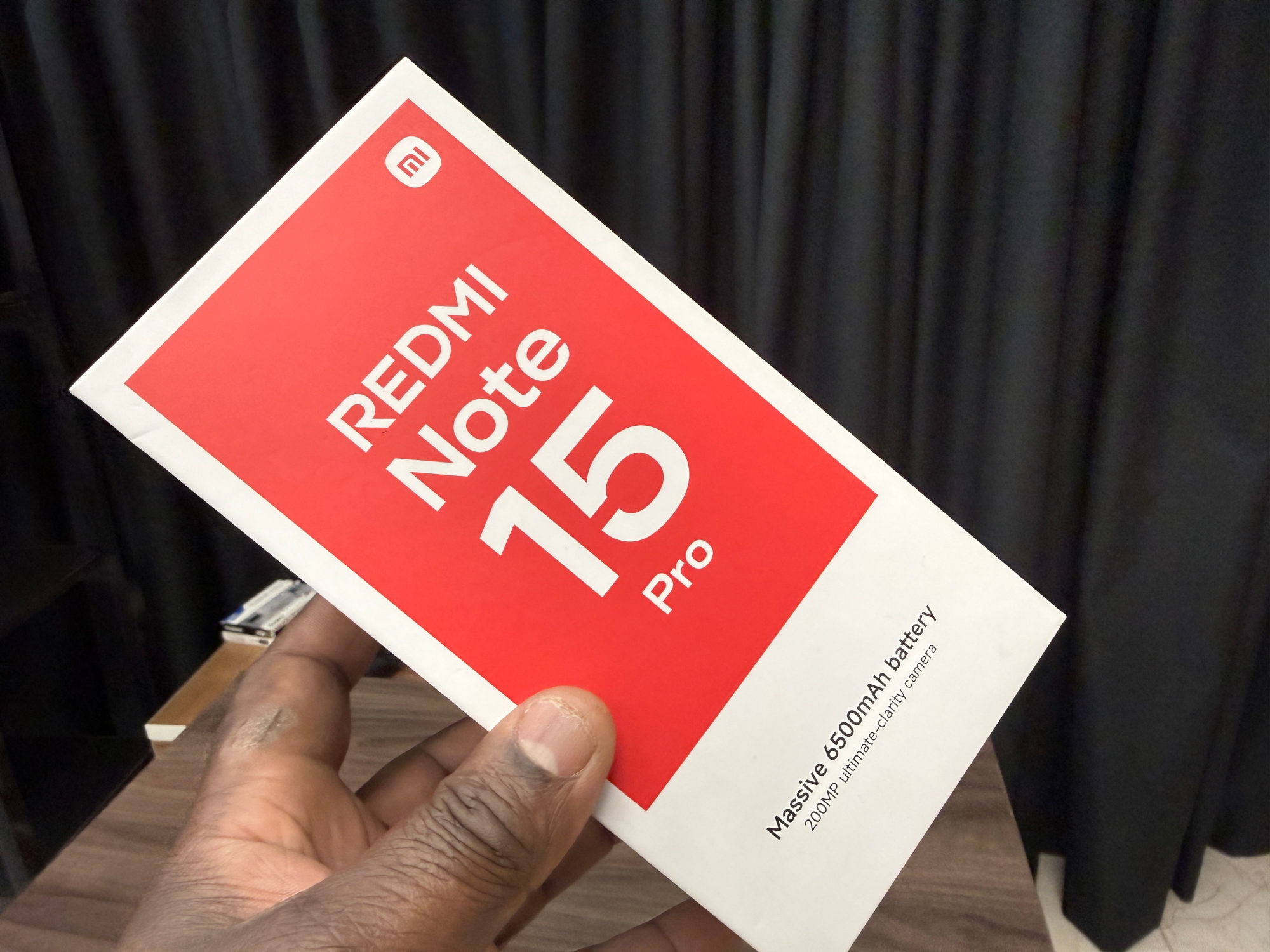
Check the phone while you still have it
1. Check the signed-in Google Account. In Settings, check Location and Find Hub's Allow device to be located switch. Redmi labels can differ; search Settings if needed.
2. In Google settings, look for Find Hub, then Find your offline devices. Read the options. Google says network finding uses encrypted locations and needs a PIN, pattern or password.
I'd take a moment over those choices rather than switch everything on without reading. Choose the settings you are comfortable with, then check the result. The aim is to understand what your phone is configured to do, not simply to finish a checklist.
Make sure the right device appears
3. Open android.com/find in a browser, sign in and select your Redmi. If it is absent, check that it is visible on Google Play.
I'd do this on a trusted device and check the phone identity carefully. Seeing an old handset in the account is not the result I am looking for. Keep passwords and recovery information private; this is a check for your own phone.
Google says selecting a device to locate sends it a notification. If you deliberately test Play sound, expect a loud ring: Google says it plays at full volume for five minutes, even when the phone is set to silent or vibrate. Choose a suitable moment first.
Read the location result carefully
If a current location is unavailable, Find Hub may show the last known location when available. I'd read the result as information to assess, not proof that the phone is still at that spot.
Offline finding and finding a powered-off phone are different capabilities. Google documents powered-off finding only for supported devices. That is not evidence of support on your Redmi, so I would not plan around finding it after shutdown or an empty battery.
Keep a readiness check separate from erasing
Do not use Factory reset to test Find Hub. Google warns that it permanently deletes the phone's data, may not erase SD cards and stops that phone being available in Find Hub afterwards.
Finding a phone and keeping a copy of its data serve different purposes. My Redmi Google backup checklist covers the backup side. For the rest of a new phone's first-day tasks, see the Redmi setup guide.
Useful links
Written with AI assistance for Redmi fans. How this blog is put together.