Find the app-scanning switch
1. Open Google Play Store and tap your profile icon at the top right.
2. Choose Play Protect, then its Settings.
3. Check that Scan apps with Play Protect is on. Google says it is enabled by default, but it is worth checking the actual setting on your phone.
This is Google's Play Store route, not a model-specific HyperOS menu. If your Redmi does not have the Play Store, these instructions do not establish that the same feature is available elsewhere.
Read the second setting before changing it
Improve harmful app detection is a separate choice on that settings page. Google says enabling it lets Play Protect automatically send unknown apps to Google. That matters if you install apps from outside the Play Store.
I'd read that choice as a data-sharing decision, not just a more reassuring switch name. Decide whether you want that submission behaviour, and check the explanation shown in your app before changing it.
Google says Play Protect checks apps during installation and periodically scans the device. It may warn about, disable or remove a potentially harmful app.
If a warning interrupts an installation
I'd pause and read the app name and warning carefully. If someone sent you an installation file, verify the request with that person through a channel you already trust before going further. A message urging you to hurry is no reason to skip the check.
I would not turn scanning off merely to get an unfamiliar installation past a warning. If you believe an app was flagged incorrectly, contact its developer through its established support channel and ask them to investigate.
Even if no warning appears, I'd still check why I need the app and whether its requested access makes sense. Keeping the phone usable sometimes means deciding that one more app is not worth installing.
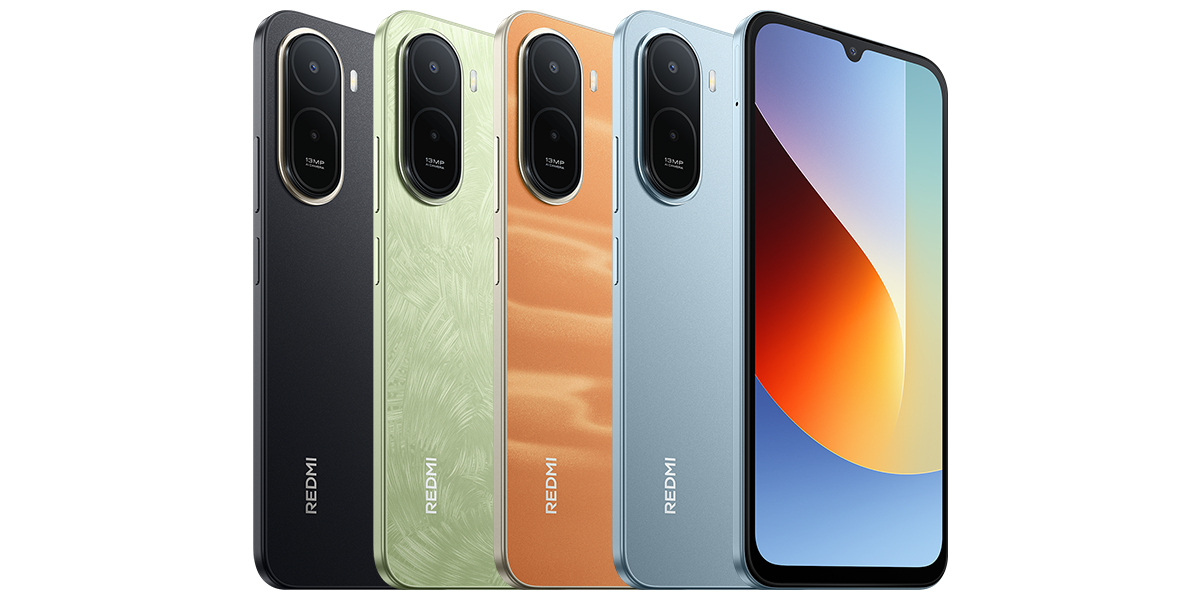
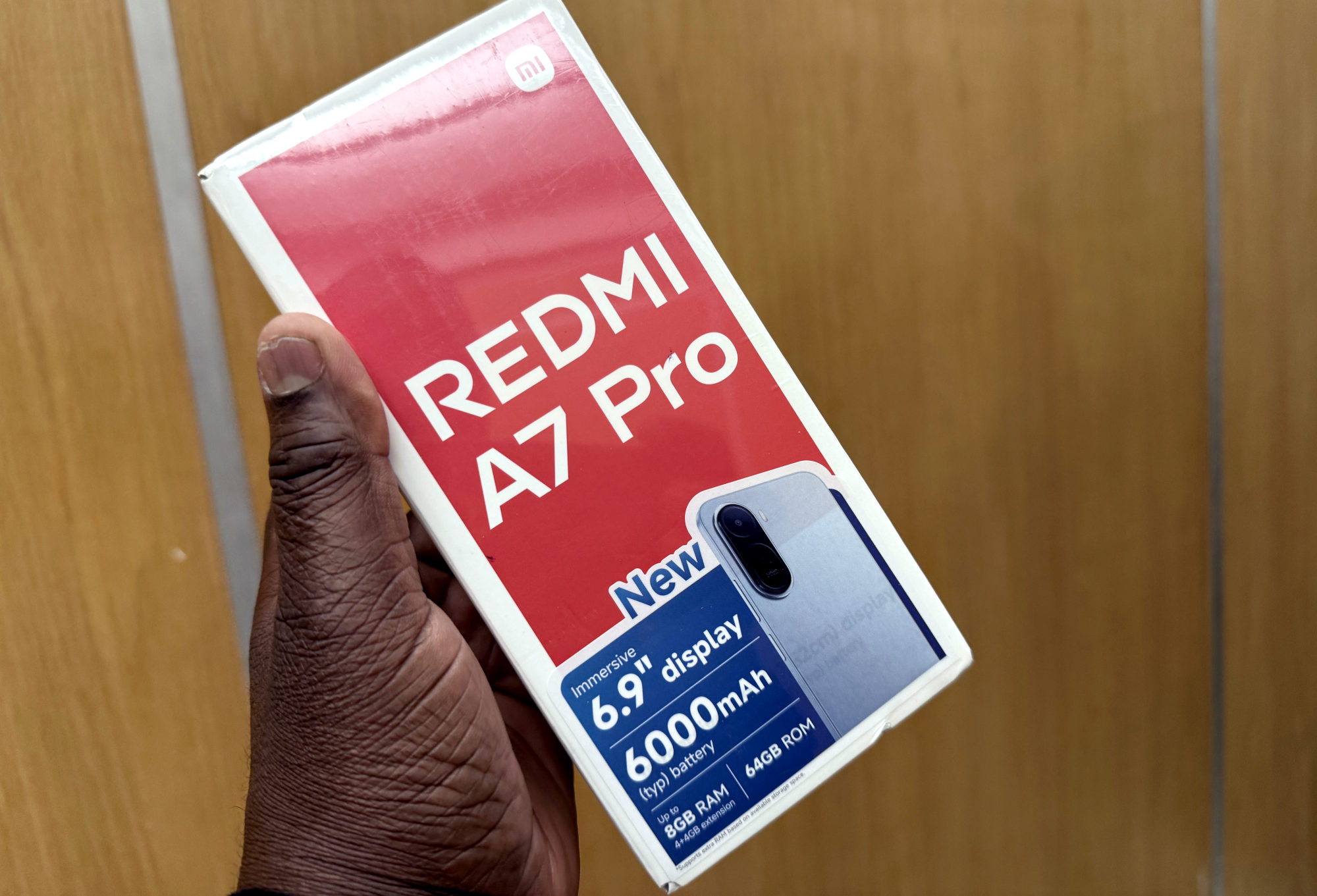
For the rest of a new phone setup, my Redmi setup checklist covers updates, screen locks and permissions. The Redmi A7 Pro in this article's photograph is an illustration, not a scan result.
Useful links
- Google Play Help: Play Protect settings, unknown-app detection and warnings (opens in a new tab) Checked 24 October 2026
Written with AI assistance for Redmi fans. How this blog is put together.