Keep the exact model in view
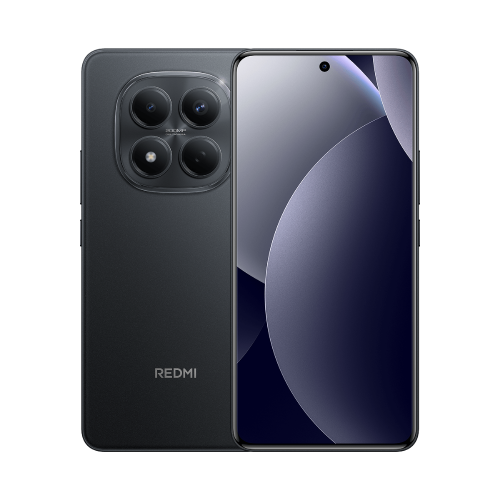
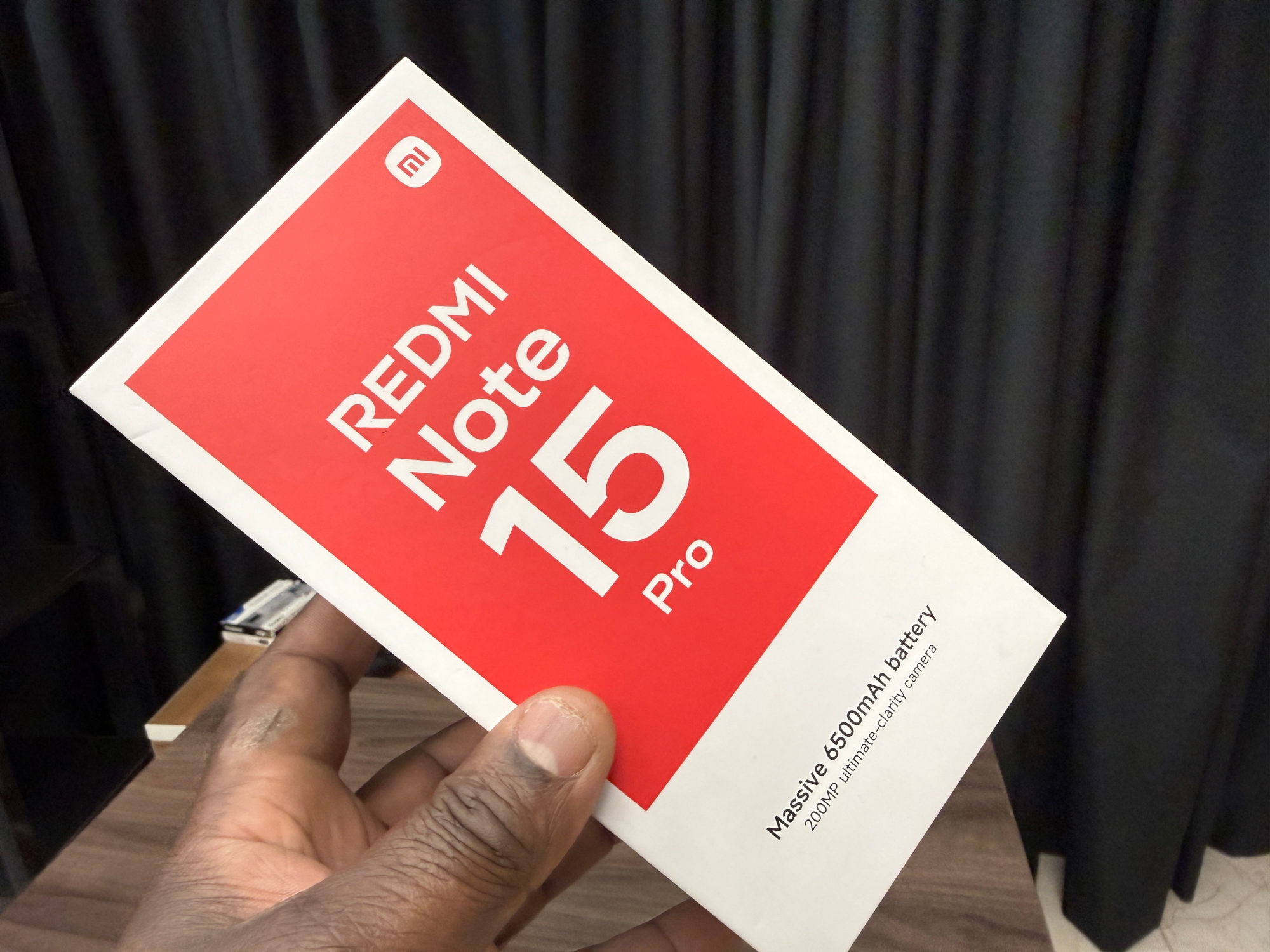
This guide covers the Helio G200-Ultra Redmi Note 15 Pro described in Xiaomi's UK FAQ, not the similarly named 5G phone. Check my Note 15 Pro 4G and 5G comparison before comparing results from different reviews.
Xiaomi lists Game Turbo support, but no game super resolution or game frame insertion. I wouldn't treat the Game Turbo name as a guarantee that a particular game gains an extra frame-rate mode.
Read the game figures as manufacturer guidance
The figures above come from Xiaomi's game-function FAQ, checked on 26 October 2026. They are not measurements from a Redmi Fans gaming test. That answer does not specify the game builds, graphics presets or length of the test, so it cannot establish sustained performance in your own session.
If you are choosing the phone mainly for one game, look for a recent test naming the exact phone variant, game version and graphics settings. A clip of an unrelated title, or a number from another Note model, would not settle it for me.
Why the screen number is different
Refresh rate describes how often the display updates; game frame rate describes the new frames the game produces. Android's developer guidance explains that requesting a higher display rate does not guarantee the game can render at that rate. Power-saving and temperature limits can also affect the system's choice.
For example, refreshing a screen 120 times a second does not turn 60 newly rendered game frames into 120 different ones. I'd compare the game's own frame-rate option and measured performance, rather than use the display specification as a score.
What I would compare on the phone
Start with the options the game actually offers on your software version. Note the graphics preset and frame-rate setting, then compare the same scene or activity after changing one option. If an in-game frame counter is available, use it alongside how consistent play feels.
My preference would be a setting that stays comfortable through an ordinary session. A higher selectable number is less useful to me if the experience repeatedly becomes uneven. Keep your original settings written down so you can return to them.
Useful links
- Xiaomi UK: Redmi Note 15 Pro FAQ, Screen, SoC and Game Function sections (opens in a new tab) Checked 26 October 2026
- Android Developers: optimising refresh rates and game performance (opens in a new tab) Checked 26 October 2026
Written with AI assistance for Redmi fans. How this blog is put together.