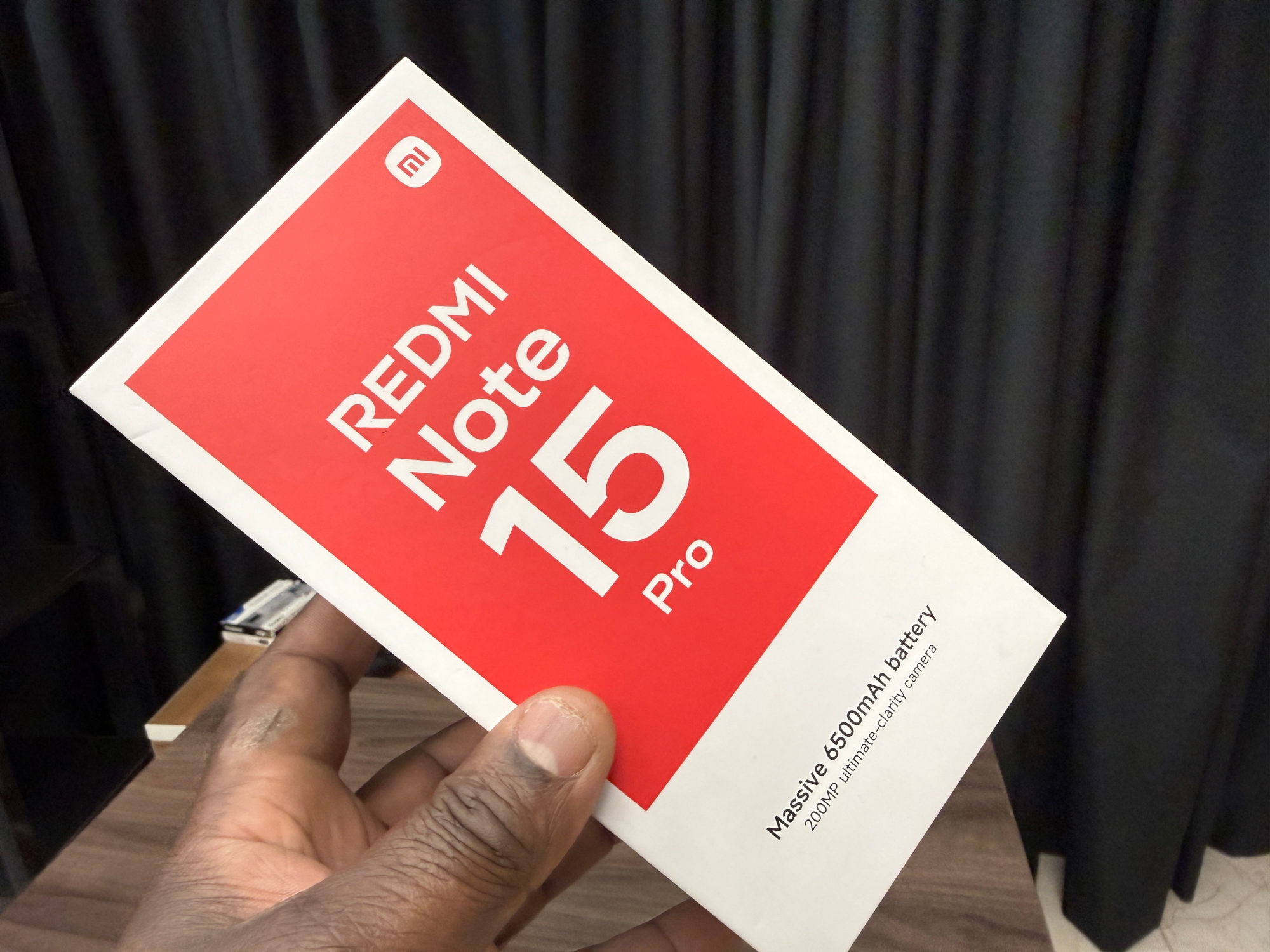
Check which Note 15 Pro you have
This guide covers the Redmi Note 15 Pro with the Helio G200-Ultra processor, documented in Xiaomi's UK FAQ. For help separating it from the other version, see my Note 15 Pro 4G and 5G comparison.
The setup route below comes from Xiaomi's general Reading mode guide. Menu wording and available controls can vary with the software on your phone, so use the labels you actually see rather than expecting every example to match.
Find Reading mode and try Classic
1. Open Settings, then Display & brightness, then Reading mode. This is the route in Xiaomi's general instructions.
2. Select Classic reading mode from the choices available. Xiaomi describes this option as making colours warmer and reducing blue light.
3. Return to a familiar article or book page. Read a paragraph, then revisit the setting and compare the appearance with Reading mode off.
I'd keep the same page and surroundings for that comparison. The useful result is a display you prefer for reading, not the strongest effect you can select. If you dislike the change, return to Reading mode and switch it off.
Why the other names need care
The model FAQ names Texture and Cycle alongside Classic. Xiaomi's general explanation instead discusses Paper and Circadian modes: Paper adds a paper-like background texture, while Circadian changes colours according to the app and time zone.
Those two sources use different names. I wouldn't assume every label, slider or automatic behaviour maps exactly to your software build. Read the description beside an option before choosing it, and compare one change at a time.
For a first attempt, I'd stay with Classic. You can explore the other choices later without needing to turn every display option on at once.
If Color Scheme will not change
Xiaomi warns that trying to adjust Color Scheme while Reading mode is enabled can produce a message saying it cannot be adjusted. Turn Reading mode off before trying Color Scheme again.
If the Reading mode page itself is missing or looks very different, note your exact model and software version before asking Xiaomi support. A screenshot of that page is more helpful than a description of a menu from another phone.
I'd judge this as a display preference. A warmer-looking page is not proof of improved sleep or eye health, and this guide makes no such promise.
Useful links
- Xiaomi UK: Redmi Note 15 Pro FAQ, supported Reading mode options (opens in a new tab) Checked 20 October 2026
- Xiaomi UK: Reading mode settings, colour changes and Color Scheme restriction (opens in a new tab) Checked 20 October 2026
Written with AI assistance for Redmi fans. How this blog is put together.