Check the phone and the app first
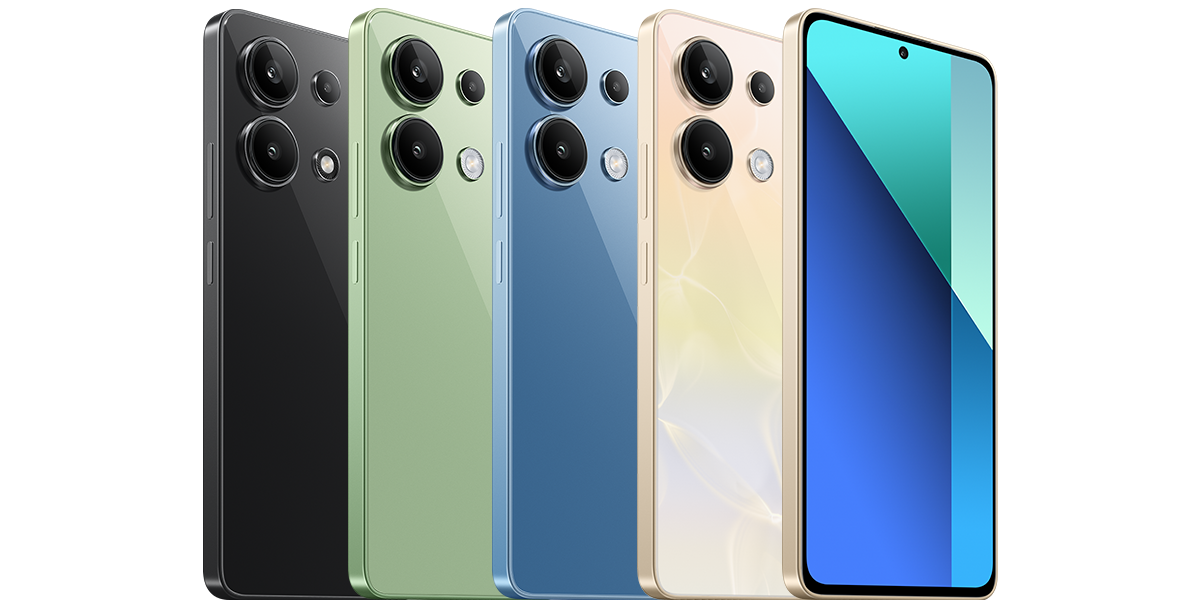
Look for IR blaster in the official specifications or support information for your exact model and region. The Redmi Note 13 FAQ used here describes the Snapdragon 685 model; it is not a blanket specification for all Note 13 variants.
If Mi Remote is not already installed, use Xiaomi’s official Google Play listing linked below. Check that the developer is Beijing Xiaomi Mobile Software Co.,Ltd. App availability and the screens you see can vary by device, region and software version.
Add a supported device
Xiaomi’s support instructions use a set-top box as the example. Try this sequence on an appliance you own or have permission to control.
- 1. Open Mi Remote on the phone.
- 2. Select Add remote, then choose the appropriate device category.
- 3. For a set-top box, select the service provider offered by the app. For another category, follow its own selection prompts.
- 4. Use the on-screen Power test and follow the remaining prompts. Check whether the actual appliance responds before confirming that a remote works.
Check more than the power button
As a practical check, try the controls you expect to use after setup, such as volume or channel selection where available. A working power test is a useful start; it does not establish that every control is correct for your appliance.
If a test does not work, answer the app’s prompts accurately rather than confirming a response that did not happen. Xiaomi explicitly warns that Mi Remote does not support every device. Keep the original remote available until you have checked the functions you need.
Infrared and Wi-Fi control are different
Xiaomi’s app listing distinguishes infrared control from network control of Mi TV, Mi Box and other smart TVs using supported Wi-Fi protocols. A phone lacking IR hardware may still have a compatible network-control option, but that does not let it send infrared commands to an ordinary appliance.
A Bluetooth or Wi-Fi feature elsewhere in your phone’s specifications is not evidence of an IR blaster. Match the control method to both the phone and the appliance instead of assuming that any remote-control app will work.
If your appliance is missing or unresponsive
Recheck the exact device category and model information before trying again. If the app has no suitable option or cannot produce a working test, use the appliance maker’s documented remote or app route. Avoid treating a missing brand as proof that the phone is faulty.
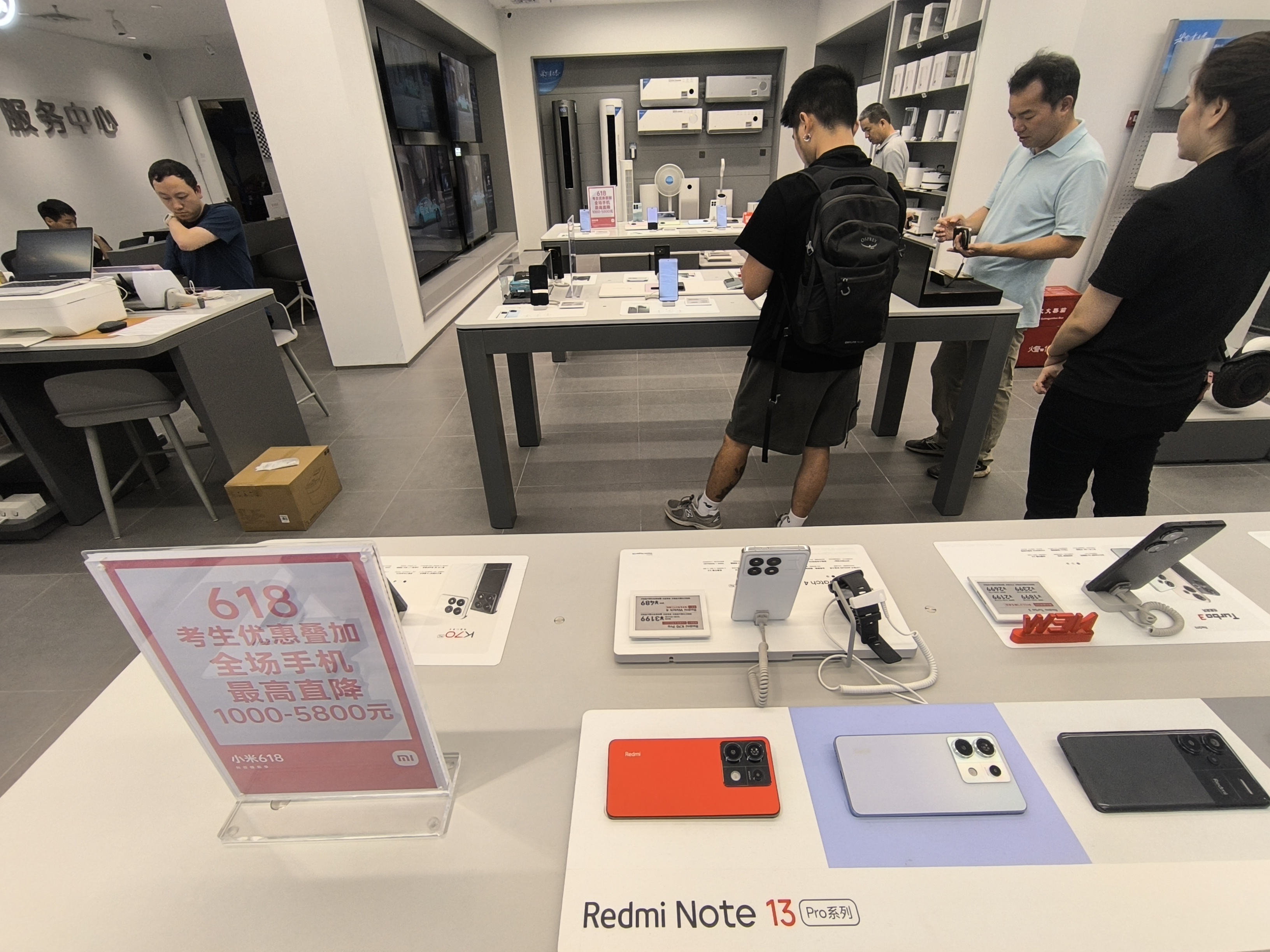
This is a source-based setup guide, not a test of every appliance. Compatibility should be established with your own equipment; the store photograph is illustrative and does not demonstrate remote-control support.
Sources and further reading
- Xiaomi: Mi Remote setup and supported-device limits (opens in a new tab) Checked 8 October 2026
- Xiaomi Malaysia: Redmi Note 13 FAQ and IR hardware (opens in a new tab) Checked 8 October 2026
- Xiaomi: official Mi Remote app listing (opens in a new tab) Checked 8 October 2026
Prepared with AI assistance and checked against the sources listed. Menu names and features can vary by device and software version. How we publish.