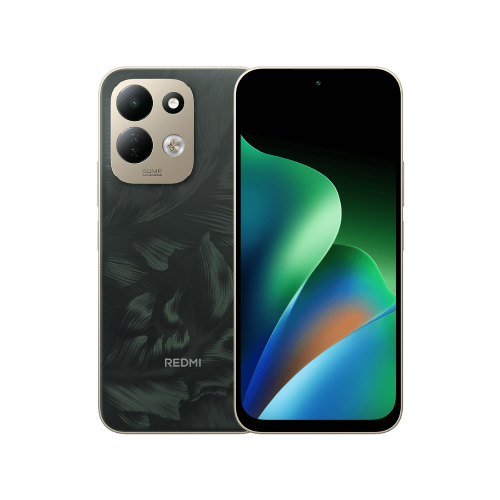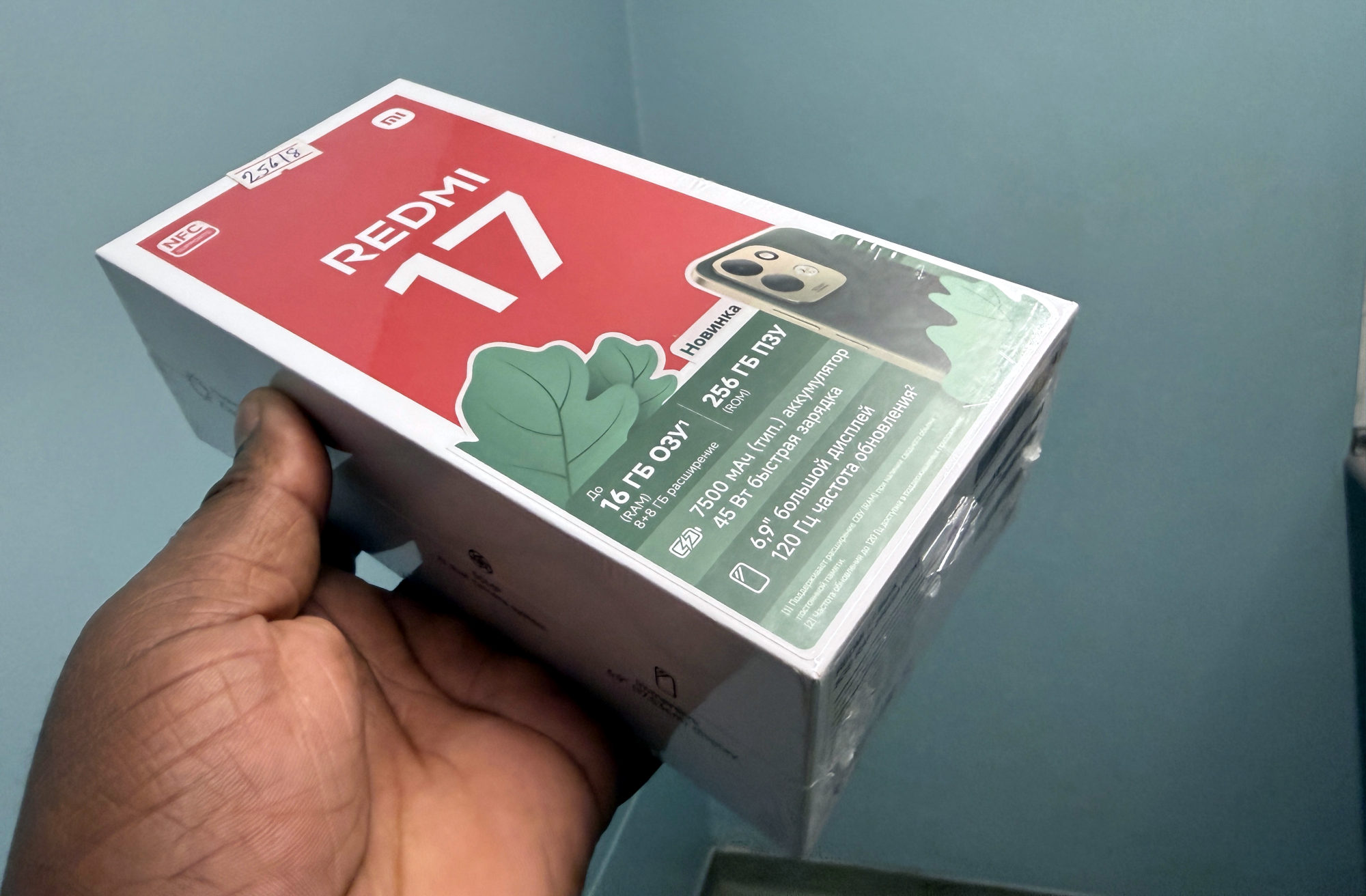
Find the style setting
These instructions cover the Redmi 17 in Xiaomi's global FAQ. They are not a promise that every similarly named Redmi or regional software build has the same menu.
1. Open Settings and select Notifications & status bar.
2. Open Control center style. The on-screen spelling may use 'center', even though I use British English here.
3. Note which choice is currently selected, then choose Old version or New version. Those are the two options named in Xiaomi's Redmi 17 instructions.
Compare before you settle on one
Return to your usual screen and open the panel you normally use for quick controls. Look for a familiar control and check whether its position is easier to find. I'd inspect the layout without toggling mobile data or other connections just to test it.
Then return to the same setting and try the other style. Compare a couple of ordinary tasks rather than choosing from the names alone. 'New' is not a reason to keep a layout that makes you hunt for things.
A successful check is simple: you can reopen the panel, recognise its layout and find the controls you use. I'd give a changed layout a little time before deciding, especially if muscle memory keeps sending me to the old position.
Return to the previous style
Revisit Settings, Notifications & status bar, Control center style and select the choice you noted earlier. Open the panel again to check that the layout is back where you expect it.
If the menu is absent or the choices differ, stop at that mismatch. Record the exact model and software version, then ask Xiaomi support about that build. I wouldn't change the phone's region or reset it merely to chase this layout option.
My preference would be consistency: pick the style you can navigate confidently, then leave it alone unless there is a useful reason to change.
Useful links
- Xiaomi global: Redmi 17 FAQ, Control center style under System Usage (opens in a new tab) Checked 23 October 2026
Written with AI assistance for Redmi fans. How this blog is put together.