Start with the browser you want to use
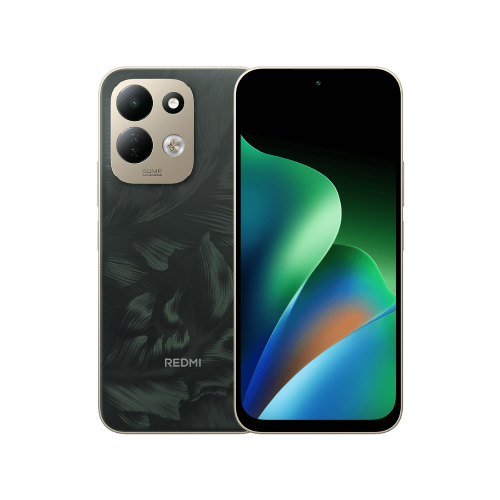
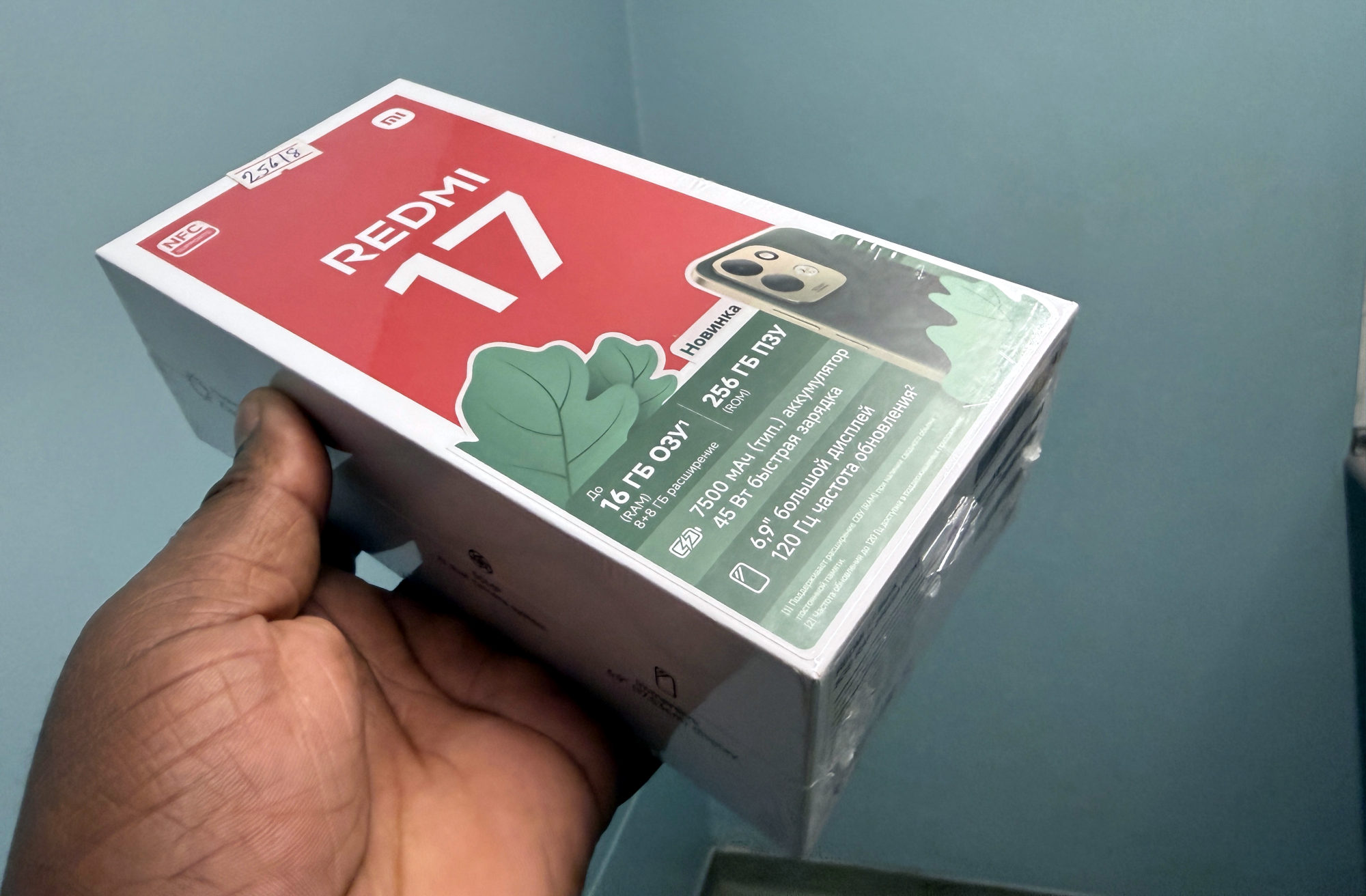
These instructions cover the Redmi 17 in Xiaomi's global support FAQ. Regional software and labels can differ. They do not establish the same menu path for the Redmi 17 5G.
Before changing the default, I'd open my preferred browser directly and check that it is the app I intend to use. This guide is about selecting a browser, so choose one you already have available rather than installing an extra settings utility.
Change the browser selection
1. Open Settings on the Redmi 17, then Apps.
2. Tap the three-dot icon, open Other settings and choose Default apps. This is the route Xiaomi documents for the model.
3. Open the browser category. Google's Android instructions call it Browser app; follow the equivalent browser label shown on your build.
4. Note the current selection, then select your preferred browser from the available choices.
Return to the browser category and check that the chosen app is selected. I'd make that my first checkpoint before testing a link. If the menus do not match, search Settings for Default apps or check Xiaomi's support for your exact software version.
If you specifically want Chrome
Google also documents a route from Chrome itself: open Chrome, tap More, choose Make Chrome default and select the button beside Chrome. Use that route if the option appears in your installed version.
Chrome is one option, not a requirement for following the Redmi's default-app route. I'd choose the browser whose everyday layout and controls I prefer, then verify the setting rather than assume an installation or an app icon has made it the default.
Check a link, and know how to switch back
Try an ordinary web-page link from outside the browser, such as one in a message, and check which browser opens. I'd use a harmless page I recognise for this test. Opening a browser by tapping its own icon only proves that the app launches, not that it is selected as the default.
If the result surprises you, revisit Default apps and check the browser selection. Note the app you tapped the link in and what happened. If the selected browser is correct but that particular app still behaves differently, check that app's help before changing unrelated phone settings.
To return to the previous browser, repeat the same settings route and select the app you noted earlier. Google confirms that the default browser can be changed again.
For the other checks I'd make on a new handset, see my Redmi setup guide. Choosing your browser is one small part of making the phone feel like yours.
Useful links
- Xiaomi global: Redmi 17 FAQ, default-app settings route (opens in a new tab) Checked 19 October 2026
- Google Android Help: selecting a default browser (opens in a new tab) Checked 19 October 2026
- Google Chrome Help: Make Chrome default on Android (opens in a new tab) Checked 19 October 2026
Written with AI assistance for Redmi fans. How this blog is put together.