Check which Redmi Pad 2 you own
This guide covers the 11-inch Redmi Pad 2 with Wi-Fi and the separately named Redmi Pad 2 4G. It does not establish compatibility for Pad 2 Pro or Pad 2 9.7 models. Match the full name on your tablet and packaging to the regional Xiaomi specification before buying a card.
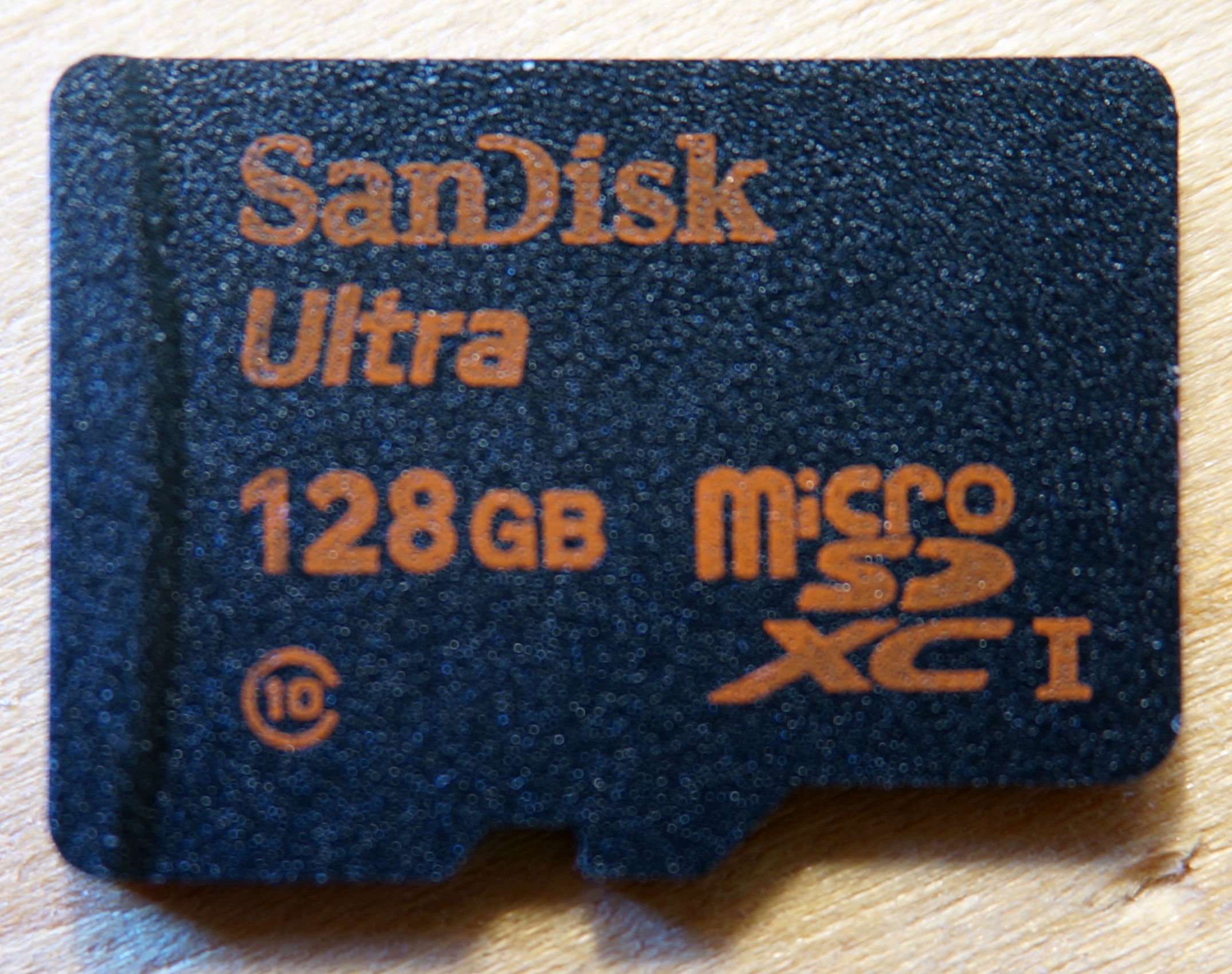
Xiaomi’s specification sheets list up to 2TB of expansion for both covered models and say the storage card is sold separately. The Redmi Pad 2 FAQ calls its memory-card slot a TF slot; Xiaomi’s Latin American product page explicitly describes microSD support.
What the extra storage changes
The global specifications list 128GB or 256GB of built-in UFS 2.2 storage, paired with different RAM configurations. The operating system and pre-installed software already use part of that capacity. The removable card adds a separate place for files; it does not replace the installed storage hardware or change the physical RAM configuration.
Think about the files you want to carry: photos, documents and videos that you can copy yourself are straightforward candidates. A 2TB ceiling is a supported maximum, not a requirement to buy the largest card. Base the capacity on your actual collection and leave room for new files.
Do not confuse card storage with the Memory extension setting. Our guide to physical RAM and memory extension on the Redmi 14C explains the distinction using a phone example; the setup instructions there are specific to that phone.
Can apps and games move to the card?
Google’s Android documentation says a card configured as portable storage can hold files such as photos and videos, but cannot host installed apps. That means extra card capacity is not automatically a solution when apps fill the tablet’s internal storage.
Android also documents an internal-storage mode on supported devices. The Xiaomi pages checked here confirm card expansion, but do not establish that this mode is offered on the Redmi Pad 2. Do not buy a card on the assumption that every app, game or streaming download can move to it. Check the individual app’s storage options for the content you need.
Copy a small batch and check it first
Fit the card using the instructions supplied with your exact tablet and check that it is recognised in storage settings. If the device asks to format a card containing files you need, stop and back them up elsewhere first: formatting permanently deletes the card’s data.
For a recognised card used as portable storage, the following route is documented for Files by Google. It is an optional app from Google Play, not a claim that these are the menus in Xiaomi’s own file manager.
- 1. Open Files by Google and choose the category containing a small test file, such as a document or photo.
- 2. Select the file, open the More menu and choose Copy to, then SD card.
- 3. Choose an existing destination folder and confirm Copy here.
- 4. Browse to the SD card, open the copied file and check that it works. Repeat with a few of the file types you plan to store.
- 5. Only remove an internal-storage original after you have verified the copy and kept another backup of anything irreplaceable.
If the card does not appear
First check whether the tablet recognises it in Settings, rather than looking only in a file app. Google’s troubleshooting distinguishes a card missing from Settings from one visible there but absent in Files by Google. The latter can happen when a card is configured as internal storage.
Menu names vary with software. Search Settings for storage instead of assuming Google’s generic menu path will match HyperOS. If the card remains undetected, follow the tablet’s card-fitting instructions and ask Xiaomi support to check the model, card capacity and exact error message. Avoid repeated formatting while the card holds your only copy of important files.
Sources and further reading
- Xiaomi Global: Redmi Pad 2 storage, RAM and 11-inch model specifications (opens in a new tab) Checked 12 October 2026
- Xiaomi Global: Redmi Pad 2 4G specifications and expansion limit (opens in a new tab) Checked 12 October 2026
- Xiaomi Malaysia: Redmi Pad 2 FAQ, storage and TF card slot (opens in a new tab) Checked 12 October 2026
- Xiaomi Latin America: Redmi Pad 2 microSD support (Spanish) (opens in a new tab) Checked 12 October 2026
- Google Android Help: portable storage, apps and formatting precautions (opens in a new tab) Checked 12 October 2026
- Files by Google Help: copying files to a card and detection troubleshooting (opens in a new tab) Checked 12 October 2026
- Featured photograph licence: Creative Commons BY-SA 3.0 (opens in a new tab) Checked 12 October 2026
Prepared with AI assistance and checked against the sources listed. Menu names and features can vary by device and software version. How we publish.