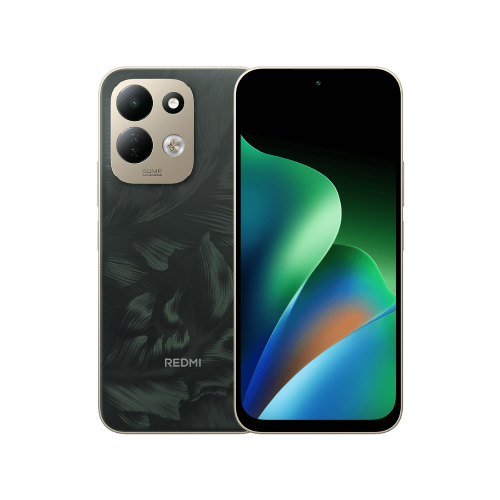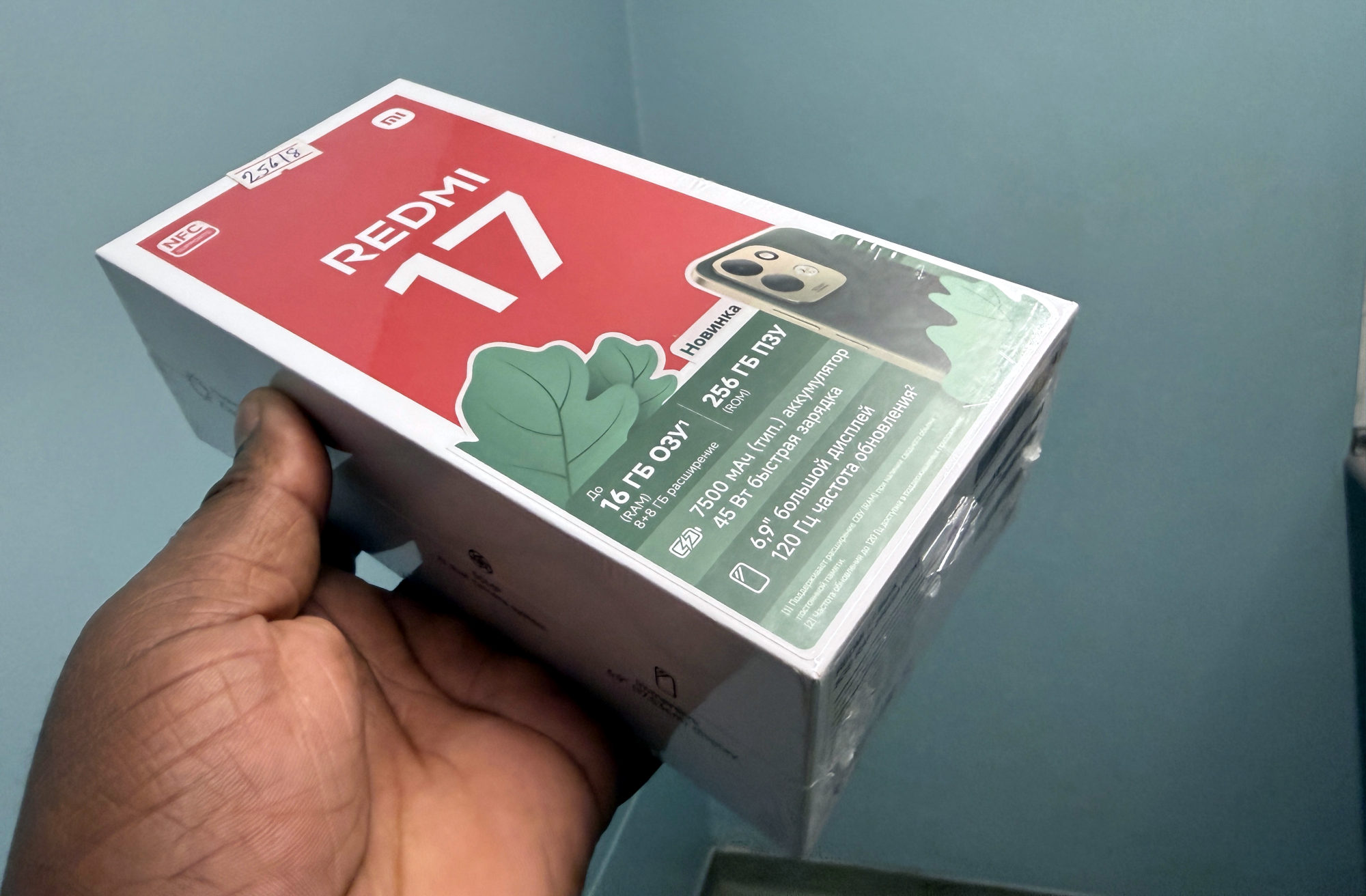
Assign the first sound, then the second
This follows Xiaomi's global instructions for Redmi 17. It does not establish the same menus for Redmi 17 5G or every regional software build. Before starting, identify which of your two numbers belongs to SIM 1 and which to SIM 2.
1. Open the Theme app, then My account and Ringtones.
2. Choose your first sound and tap Apply.
3. Choose Ringtone, then select SIM 1 or SIM 2 for the number you want it to identify.
4. Repeat with a different sound, applying it to the other SIM.
Choose the Ringtone destination here. The separate Boot audio choice concerns the Redmi 17 startup sound, rather than this incoming-call task.
Check the two numbers separately
I'd arrange one ordinary incoming call to each number when convenient. Note which sound plays for each line, then decide whether the pair is easy to distinguish. Two very similar tunes would defeat the reason I changed them.
If I had assigned them the wrong way round, I'd return to the same route and apply the intended sound to each SIM again. To use a matching sound for both, select the same choice for each SIM.
If the SIM selection is missing or the menus do not match, stop and check your exact model and software with Xiaomi support. I wouldn't reset the phone or change its region simply to personalise a ringtone.
If calls make no sound at all, work through my Redmi 17 sound checks before choosing more ringtones.
Useful links
- Xiaomi global Redmi 17 FAQ: different ringtones for two SIM cards (opens in a new tab) Checked 1 November 2026
Written with AI assistance for Redmi fans. How this blog is put together.